


Feliratos pólók cégeknek – Miért éri meg egyedi céges ruházatba fektetni?

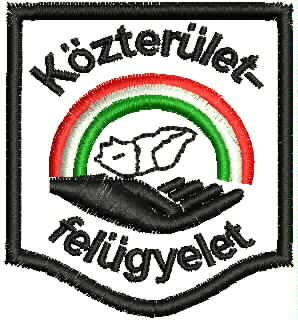
Feliratos pólók cégeknek: több mint egyszerű munkaruha
A feliratos pólók cégeknek ma már nem csupán munkaruhaként szolgálnak. Egy jól elkészített póló erősíti a vállalati arculatot, növeli a bizalmat és professzionális megjelenést biztosít az ügyfelek előtt. A feliratos pólók cégeknek különösen fontosak olyan vállalkozások számára, ahol az alkalmazottak közvetlen kapcsolatba kerülnek az ügyfelekkel.
A Palesz Kft. professzionális gépi hímzéssel és egyedi ruházati megoldásokkal segíti a vállalkozásokat abban, hogy a megjelenésük összhangban legyen a szolgáltatásaik minőségével.
Miért fontosak a feliratos pólók cégeknek?
A feliratos pólók cégeknek számos előnyt kínálnak. Egységes megjelenést biztosítanak, amely növeli a vállalkozás hitelességét. Egy ügyfél sokkal nagyobb bizalommal fordul egy olyan munkatárshoz, aki rendezett és azonosítható céges ruházatot visel.
A feliratos pólók cégeknek emellett mobil reklámfelületként is működnek. Minden egyes viselés során a vállalkozás neve, logója és üzenete új emberekhez jut el.
Gépi hímzés vagy nyomtatás?
Amikor feliratos pólók cégeknek készülnek, gyakran felmerül a kérdés, hogy nyomtatás vagy hímzés legyen-e az alkalmazott technológia.
A gépi hímzés előnyei:
- prémium megjelenés
- hosszú élettartam
- kopásállóság
- elegáns vállalati megjelenés
- professzionális hatás
A Palesz Kft. által készített feliratos pólók cégeknek gépi hímzéssel készülnek, amely tartósabb és esztétikusabb megoldást jelent a legtöbb vállalkozás számára.
Milyen cégeknek ajánlott?
A feliratos pólók cégeknek szinte minden iparágban hasznosak:
- szervizek
- építőipari vállalkozások
- parkolók
- vendéglátóhelyek
- kereskedelmi cégek
- futárszolgálatok
- logisztikai vállalkozások
- rendezvényszervezők
A feliratos pólók cégeknek különösen akkor fontosak, ha a munkatársak naponta találkoznak ügyfelekkel.
Hogyan erősíti a márkát?
A feliratos pólók cégeknek segítenek a márkaépítésben. Az emberek könnyebben megjegyzik azt a vállalkozást, amelynek munkatársai egységes ruházatban jelennek meg.
A jól elkészített feliratos pólók cégeknek növelik a felismerhetőséget és javítják a vállalkozás megítélését. A céges logó és a vállalati színek tudatos használata hosszú távon komoly marketingértéket képvisel.
Mire figyeljünk rendelés előtt?
Ha feliratos pólók cégeknek készülnek, érdemes figyelembe venni:
Anyagminőség
A tartós póló hosszabb élettartamot biztosít.
Logó mérete
A megfelelő méretű logó jól látható, mégsem zavaró.
Hímzés elhelyezése
A mellkasra vagy hátoldalra készített hímzés a legnépszerűbb.
Színválasztás
A vállalati arculathoz illeszkedő színek erősítik a márkát.
A minőségi feliratos pólók cégeknek hosszú éveken keresztül szolgálhatják a vállalkozást.
Miért válassza a Palesz Kft.-t?
A Palesz Kft. nagy tapasztalattal rendelkezik egyedi céges ruházatok gyártásában. A modern gépi hímzési technológia biztosítja, hogy a feliratos pólók cégeknek tartósak, esztétikusak és professzionális megjelenésűek legyenek.
Akár kisvállalkozásról, akár nagyobb cégről van szó, a feliratos pólók cégeknek kiváló befektetést jelentenek a vállalati arculat fejlesztésébe.
Összegzés
A feliratos pólók cégeknek nem csupán ruhadarabok. Marketingeszközök, bizalomépítő elemek és a professzionális megjelenés alapjai. A minőségi gépi hímzésnek köszönhetően a feliratos pólók cégeknek hosszú távon szolgálják a vállalkozás érdekeit, miközben erősítik a márka ismertségét és hitelességét.